联系我们
与泰克代表实时聊天。 工作时间:上午 9:00 - 下午 5:00(太平洋标准时间)。
致电我们
工作时间:上午9:00-下午5:00(太平洋标准时间)
下载
下载手册、产品技术资料、软件等:
反馈
SignalVu Essentials Technical Reference
This document provides an overview of the SignalVu Vector Signal Analysis Software.
此手册适用于:
DPO7054C, DPO7104C, DPO7254C, DPO7354C, DPO70404C, DPO70604C, DPO70804C, DPO71254C, DPO71604C, DPO72004C, MSO72004C, MSO71604C, MSO71254C, MSO70804C, MSO70604C, MSO70404C, MSO5204, MSO5104, MSO5054, MSO5034, DPO5054, MSO72304DX, MSO72504DX, MSO73304DX, DPO72304DX, DPO72504DX, DPO73304DX, DPO72304SX, DPO73304SX, DPO71604SX, DPO71304SX
下载即代表您同意手册下载协议的条款和条件。
手册下载协议
注意:从本网站下载任何文档之前,请认真阅读以下条件和条款。 如果从泰克网站上下载手册,即表示您同意以下条件和条款:
当前支持的产品的手册:
泰克在此向泰克仪器的所有者授予权限和许可,可从此网站上下载和复制手册供其自己内部或个人使用。 除非经过泰克公司书面专门授权,当前支持产品的手册不得复制用于发行。
泰克手册可能会被更新以反映产品制造寿命过程中所做的更改。 因此,任何给定产品都可能存在多个手册版本。 请小心使用,确保为特定的产品序列号获取正确的手册版本。
不再支持的产品的手册:
对于不再适于长期支持的测量产品,泰克无法提供手册。 泰克特此向他人授予权限和许可,对于 (a) 拥有泰克部件号,并且 (b) 用于泰克不再支持的测量产品,可以复制和发行泰克任何测量产品手册的副本,包括用户手册、操作手册、维修手册等等。
泰克手册可能会被更新以反映产品制造寿命过程中所做的更改。 因此,任何给定产品都可能存在多个手册版本。 请小心使用,确保为特定的产品序列号获取正确的手册版本。
此授权和许可不适用于泰克仍在提供的任何手册和其他出版物,或者用于视频制作产品或彩色打印机产品的任何手册和其他出版物。
免责条款:
对于非泰克提供的、或者按照上述授权和许可复制或发行的任何测量产品手册或其他出版物,泰克对于其中所含任何信息、文字、图形、原理图、部件清单或其他材料的准确性和完整性不做保证。
泰克可能会随时更改本网站或其产品的内容而不事先通知。
责任限制:
对于使用按照上述授权和许可制作或发行的任何测量产品手册或其他出版物所造成的任何损害,包括但不限于利润损失、业务中断或侵犯知识产权,泰克不应承担责任。
Read Online
Getting started with SignalVu
The SignalVu Vector Signal Analysis software transforms a digital oscilloscope into an analysis tool for measuring and analyzing RF signal behavior. The software is based on that used in the RSA5000 Series Real-Time Analyzers.
 | Note:For complete operating instructions, refer to the SignalVu Help, accessible in the SignalVu application. |
The following figure shows the spectrum display: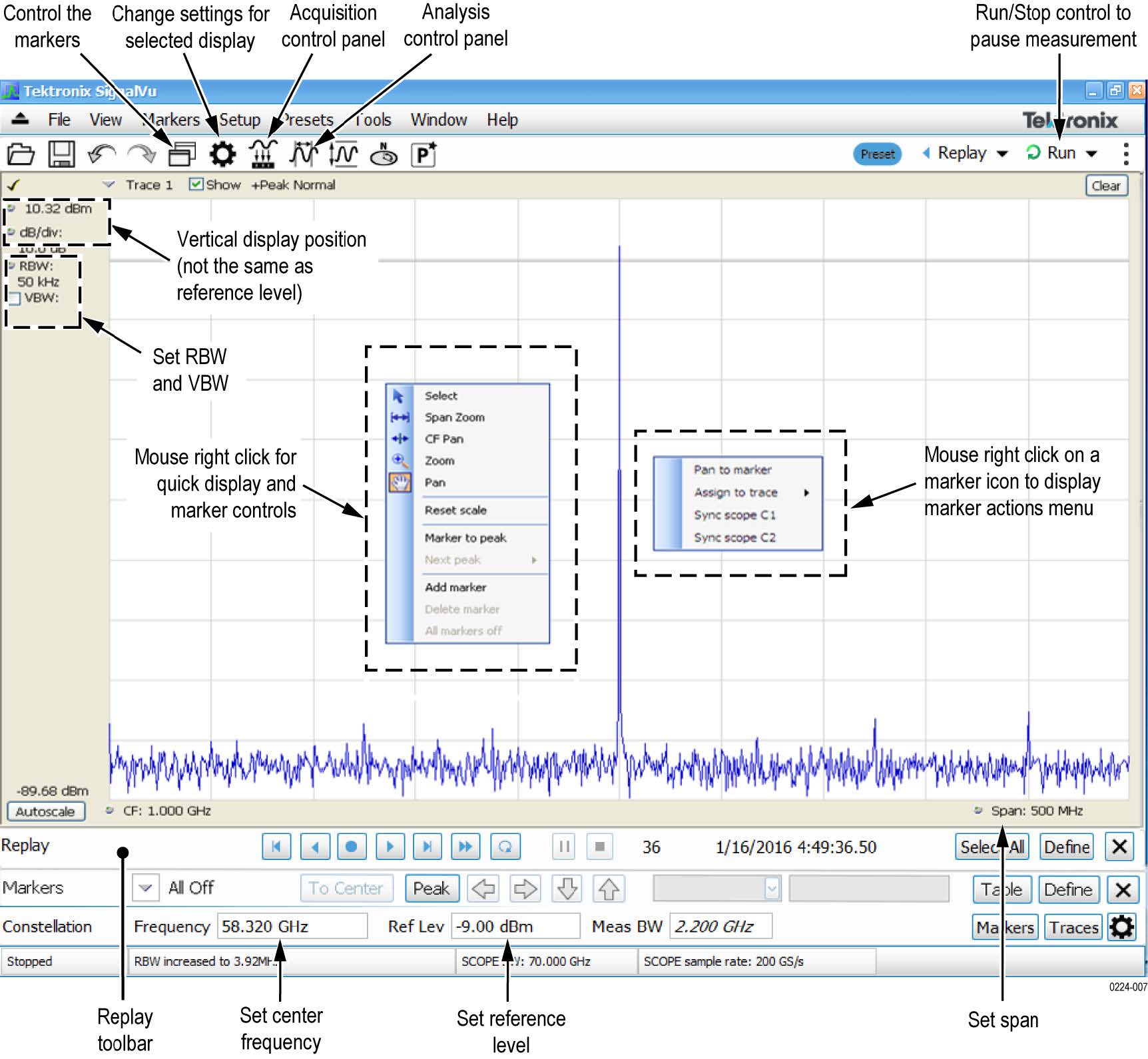
The following figure shows the spectrogram, time overview, and spectrum displays: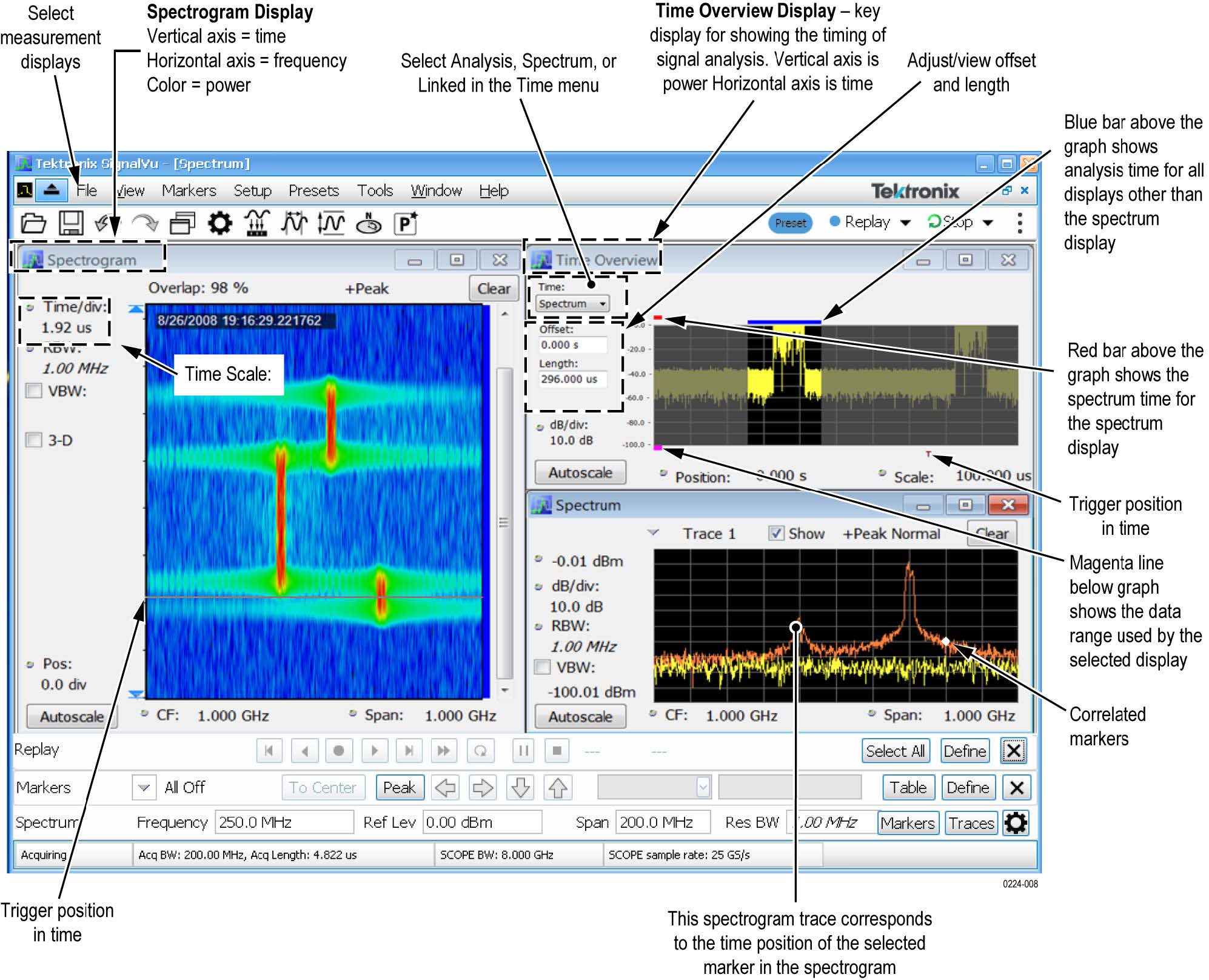
SignalVu ordering information
This software runs on DPO/MSO5000, DPO7000C, DPO/DSA/MSO70000C, and DPO/MSO70000DX Series oscilloscopes.
- Option SVE: SignalVu Essentials – Vector signal analysis software
- Option SVP: SignalVu Advanced Signal Analysis – Advanced signal analysis software (including pulse measurements); Requires Option SVE
- Option SVM: SignalVu General Purpose Modulation Analysis; Requires Option SVE
- Option SVT: SignalVu Settling Time (Phase and Frequency) Analysis; Requires Option SVE
- Option SVO: SignalVu Flexible OFDM Analysis; Requires Option SVE
- Option SVA: SignalVu Audio Analysis; Requires Option SVE
- Option SV23: SignalVu WLAN 802.11a/b/g/j/p Measurements; Requires Option SVE
- Option SV24: SignalVu WLAN 802.11n Measurements; Requires Option SVE
- Option SV25: SignalVu WLAN 802.11ac Measurements; Requires Option SVE
- Option SV26: SignalVu APCO P25 Analysis; Requires Option SVE
- Option SV27: SignalVu Bluetooth® LE and Bluetooth® Basic Rate RF Measurements; Requires Option SVE1
- Option SV28: SignalVu LTE™ Downlink (Base Station) RF Analysis Measurements (includes Cell ID)2
- Option SV30: SignalVu 802.11ad/11ay Analysis; Requires Option SVE
- Option 5GNR: 5G NR Uplink/Downlink RF Power, Bandwidth, Demodulation, and Error Vector Magnitude measurements
How to manage the 5GNR analysis license
After installing the SignalVu 5GNR Analysis plugin, it needs to be activated on that instrument/PC/laptop. The activation requires an activation code which is 20 digit alphanumeric characters separated by a hyphen between every four characters. The following topics give procedure to activate or deactivate the 5GNR Analysis.
5GNR Analysis activation
- Start the SignalVu application.
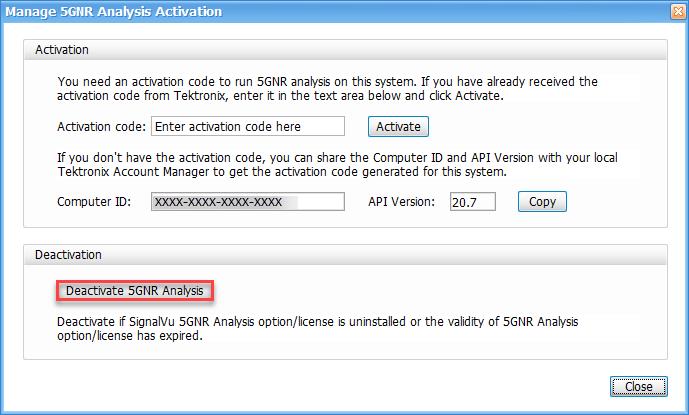
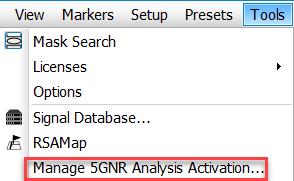
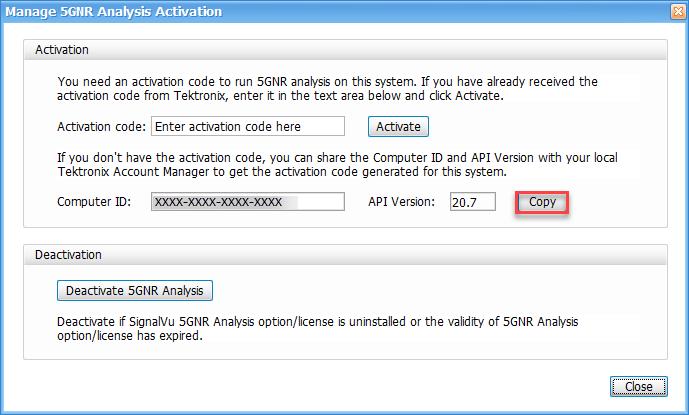
- On the Tools menu, click Manage 5GNR Analysis Activation…. The Manage 5GNR Analysis Activation dialog box appears.

- If you do not have the activation code, under Activation, click Copy, and then close the Manage 5GNR Analysis Activation dialog box.Note:Share the Computer ID and API Version that you have copied with your local Tektronix account manager to get the activation code generated for this system.
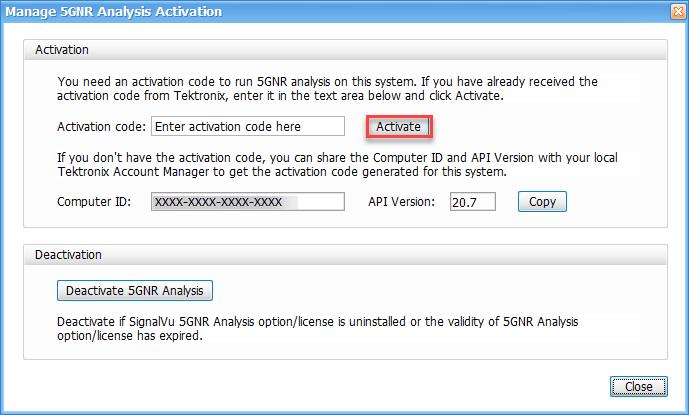
- If you have the activation code, under Activation, in the Activation code box, enter the activation code that you received from Tektronix, and then click the Activate.
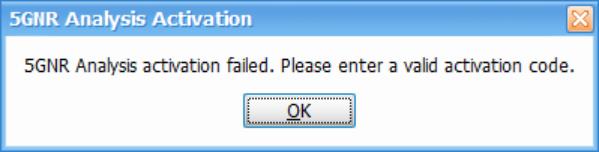
- If you receive the “5GNR Analysis activation failed. Please enter a valid activation code.” message, click OK, and then contact your local Tektronix support or Account Manager to get the correct activation code.
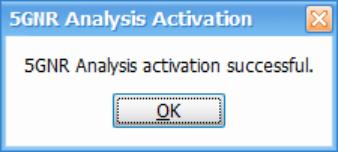
- If you receive the “5GNR Analysis activation successful” message, click OK.
- Close the Manage 5GNR Analysis Activation dialog box and restart the SignalVu application.
5GNR Analysis de-activation
- Start the SignalVu application.
- On the Tools menu, click Manage 5GNR Analysis Activation…. The Manage 5GNR Analysis Activation dialog box appears.
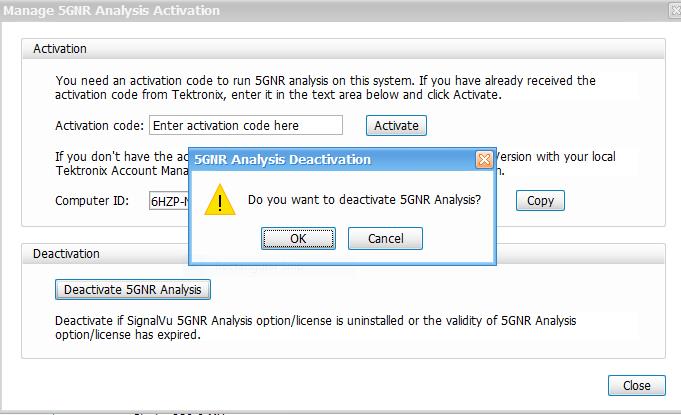
- Under Deactivation, click Deactivate 5GNR Analysis.
- Click OK and continue with 5GNR Analysis de-activation.
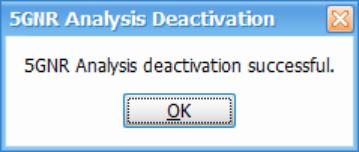
- If you receive the “5GNR Analysis deactivation successful” message, click OK, and then restart the SignalVu application.